
Automate a browser task
Console runs Chromium through Playwright on the server and puts a small, auditable API in front of it. You create a browser profile once, open a session against it, and drive that session with discrete actions — navigate, click, type, extract, screenshot, PDF. Every operation is logged against the session, and screenshots and PDFs land in a Document Store bucket.
This page takes you from an empty tenant to a completed run, first through the dashboard and then over the API, and finishes by handing the same browser to an agent over MCP.
Browsers are a community feature. Only the multi-node routing note at the end depends on the Enterprise Cluster module.
What you will end up with
- A browser profile visible under Operate → Browsers, with a stable
keyandid. - A live session that you can watch in the dashboard while it works.
- A page snapshot you can feed to a model, and a screenshot plus a PDF stored as files with download URLs.
- An MCP endpoint for that profile that any MCP-aware client — including a Console agent — can connect to.
What the service does
Every call is synchronous. The HTTP request blocks until Playwright finishes the operation or the timeout fires; there is no job id and nothing to poll. Two background jobs exist, but neither is in your request path: an idle reaper that closes stale sessions, and a boot-time reconciliation that marks sessions the runtime lost.
| Operation | Endpoint, under /api/client/v1/browser | Result |
|---|---|---|
| Run an action | POST /sessions/:sessionKey/actions | One of goto, click, hover, type, press, wait, scroll |
| Read the DOM | POST /sessions/:sessionKey/extract | text, html or attr, one element or all matches |
| Snapshot the page | GET /sessions/:sessionKey/snapshot | The accessibility tree as YAML, carrying [ref=…] markers |
| Live screenshot | GET /sessions/:sessionKey/screenshot/live | Raw PNG/JPEG bytes, cache-control: no-store, not stored |
| Persist a screenshot | POST /sessions/:sessionKey/screenshot | Uploads to the artifact bucket, returns a download URL |
| Export a PDF | POST /sessions/:sessionKey/pdf | Same, as application/pdf |
| Close a session | DELETE /sessions/:sessionKey | Closes the Chromium context |
| Delete the record | DELETE /sessions/by-id/:sessionId | Closes it and removes the row |
| Read the audit trail | GET /sessions/:sessionId/events | Every operation the session performed |
Note the split: the seven driving endpoints take the sessionKey (bs_…), while reading a session, listing its events and deleting its record take the id. The full endpoint list is in the Browser API reference.
What it does not do
- No arbitrary JavaScript in the page — there is no
evaluateendpoint. The only script the runtime executes iswindow.scrollByfor a coordinate scroll. - No file upload into the page and no download out of it.
- No cookies, local storage, custom HTTP headers, proxy or per-session credentials. The Chromium context is created with a viewport, a user agent and a locale; everything else in the session config is timeouts and the allow/block list.
- One page per session. A single Chromium page is created when the session opens and never replaced, so there are no tabs and no pop-up handling.
- No
<select>handling, no drag and drop, no raw mouse coordinates, no video recording. - No interactive remote desktop. The dashboard's "live preview" polls the live-screenshot endpoint every few seconds.
- No model in the loop.
extractreads the DOM literally; the profile's Default Model Key is stored and displayed but no browser runtime path reads it. A model only enters the picture when an agent drives the tools (see Give an agent the browser).
Before you start
| You need | Why | Where |
|---|---|---|
| Playwright with Chromium installed on the server | The runtime imports playwright lazily and fails the first session with an explicit install message if it is missing | npm install playwright then npx playwright install chromium |
| The right project selected | Profiles, sessions and buckets are project-scoped, and a token is bound to the project that was active when it was minted | Header project pill |
| A file bucket for artefacts | Screenshots and PDFs are uploaded as files; the bucket must already exist | Document Store — see Files |
| An API token, for the API half of this page | Authorization: Bearer cpeer_…; the owner needs Browsers read for the GETs and write for everything else | Settings → API Tokens — see Authentication |
If you skip the bucket, everything works until the first POST …/screenshot, which fails with File bucket not found. The default bucket key is browser-artifacts; either create a bucket with that key or set one explicitly on the profile.
Create a browser profile
- Open Operate → Browsers (
/dashboard/browser). - Select Create browser.
- Fill in the modal:
- Name — required, 2 to 120 characters. The profile
keyis slugified from it and uniquified with-2,-3… if it collides. - Description — optional.
- Default Model Key — optional. Stored and shown on the profile; nothing in the browser runtime reads it today.
- Artifact Bucket Key — the Document Store bucket that receives screenshots and PDFs.
- Name — required, 2 to 120 characters. The profile
- Select Create.
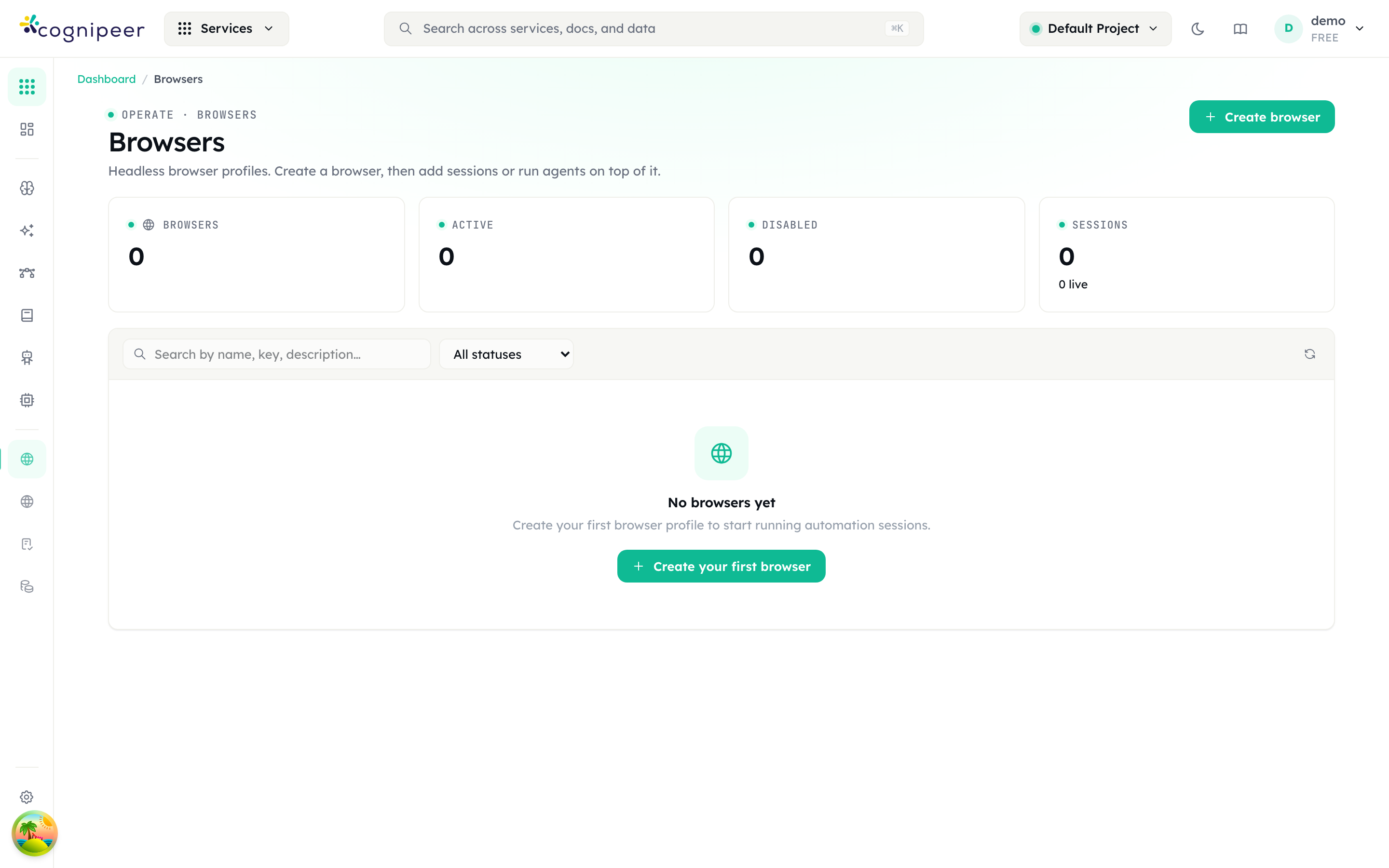
The row now shows the profile's Key, Default model, session counters and Status. Open it to reach the detail page, which has Overview, Playground and Usage tabs, plus Refresh, Sessions, Edit and a Get MCP URL action.
The modal deliberately exposes only four fields. Viewport, timeouts, user agent, locale and the allow/block list live in defaultSessionConfig, which is set over the API — see Defaults and limits.
Run a session from the dashboard
- On the profile, open the Playground tab and select New session.
- Optionally set Name (optional), Initial URL (optional), Artifact bucket override (optional), Allowed hosts (comma separated) and Blocked hosts (comma separated), then select Create.
- A drawer opens with the Live preview switch and the running page. If you supplied an initial URL, the session has already navigated to it.
The header's Sessions button opens the fuller Browser Sessions list for the profile. Its drawer adds a URL bar with Go, a Save screenshot button, an Export PDF button and a Recent events panel — enough to work a page by hand while you write the automation.
Session status is one of pending, running, idle, closed, expired or errored. expired means the reaper closed it on idle timeout or maximum lifetime, or that the runtime restarted underneath it.
The same thing over the API
Base URL: https://<host>/api/client/v1. Every request carries Authorization: Bearer cpeer_….
export CONSOLE_HOST="https://console.example.com"
export CPEER_TOKEN="cpeer_..."
alias capi='curl -sS -H "Authorization: Bearer $CPEER_TOKEN" -H "Content-Type: application/json"'
1. Create the profile. Here the full session config is set up front, which the dashboard modal cannot do.
capi -X POST "$CONSOLE_HOST/api/client/v1/browser/browsers" -d '{
  "name": "research-browser",
  "description": "Read-only research runs",
  "artifactBucketKey": "browser-artifacts",
  "defaultSessionConfig": {
    "viewport": { "width": 1440, "height": 900 },
    "locale": "en-GB",
    "idleTimeoutMs": 120000,
    "maxLifetimeMs": 900000,
    "navigationTimeoutMs": 45000,
    "access": { "allowList": ["example.com", "*.wikipedia.org"] }
  }
}'
201 with { "browser": { "id": "…", "key": "research-browser", … } }. Keep both: sessions need the id, the MCP endpoint uses the key.
2. Open a session.
capi -X POST "$CONSOLE_HOST/api/client/v1/browser/sessions" -d '{
  "browserId": "6650f1c0a1b2c3d4e5f60718",
  "name": "example-run"
}'
201 with { "session": { "id": "…", "sessionKey": "bs_9f3c…", "status": "idle", … } }. browserId must be the profile's id; passing the key returns 404 Browser not found: research-browser.
3. Navigate.
capi -X POST "$CONSOLE_HOST/api/client/v1/browser/sessions/bs_9f3c…/actions" -d '{
  "type": "goto",
  "url": "https://example.com",
  "waitUntil": "networkidle"
}'
The response is 200 with a result envelope:
{
  "result": {
    "ok": true,
    "url": "https://example.com/",
    "pageTitle": "Example Domain",
    "ariaSnapshot": "- heading \"Example Domain\" [level=1] [ref=e2]\n- link \"More information...\" [ref=e5]\n"
  }
}
Every successful action returns a fresh ariaSnapshot, so a click-then-read loop needs no extra round trip. Check result.ok, not the status code — a failed action is still 200, with the reason in result.errorMessage.
4. Address elements. The [ref=…] markers in the snapshot are the preferred way to target elements; a CSS selector is the alternative, and click, hover, type and press require one of the two.
capi -X POST "$CONSOLE_HOST/api/client/v1/browser/sessions/bs_9f3c…/actions" -d '{
  "type": "click", "ref": "e5", "selector": "a[href*=iana]"
}'
Refs are bound to the snapshot that produced them. Supplying both ref and selector is the robust form: the runtime probes the ref for two seconds and falls back to the selector if the page has moved on.
5. Read the page.
capi -X POST "$CONSOLE_HOST/api/client/v1/browser/sessions/bs_9f3c…/extract" -d '{
  "selector": "h1, p", "mode": "text", "multiple": true
}'
200 with { "result": { "ok": true, "values": ["…", "…"] } }. "mode": "text" (the default) reads innerText, "mode": "html" reads innerHTML, and "mode": "attr" needs "attribute": "href" — attribute is mandatory in that mode.
For the whole accessibility tree instead of one element:
capi "$CONSOLE_HOST/api/client/v1/browser/sessions/bs_9f3c…/snapshot"200 with { "ariaSnapshot": "…", "url": "…" }.
6. Capture artefacts.
capi -X POST "$CONSOLE_HOST/api/client/v1/browser/sessions/bs_9f3c…/screenshot" \
  -d '{ "fullPage": true, "type": "png" }'

capi -X POST "$CONSOLE_HOST/api/client/v1/browser/sessions/bs_9f3c…/pdf" \
  -d '{ "format": "A4", "printBackground": true }'
Both return 201:
{
  "artifact": {
    "bucketKey": "browser-artifacts",
    "fileId": "…",
    "objectKey": "bs_9f3c…-1723731600000-4c8a1b2e.png",
    "contentType": "image/png",
    "url": "/api/client/v1/files/buckets/browser-artifacts/objects/bs_9f3c…-1723731600000-4c8a1b2e.png/download"
  },
  "eventId": "…"
}
objectKey is generated by the Document Store — it appends its own timestamp and a random suffix, so read it from the response rather than constructing it. artifact.url is a path on the same host; fetch it with the same bearer token. The bucket is resolved in this order: the session's artifactBucketKey, then the profile's, then the server default (BROWSER_DEFAULT_ARTIFACT_BUCKET, browser-artifacts). The screenshot pointer is also written to the session as lastScreenshot.
For a preview that you do not want to keep, GET …/screenshot/live returns the bytes directly and stores nothing.
7. Close the session.
capi -X DELETE "$CONSOLE_HOST/api/client/v1/browser/sessions/bs_9f3c…"200 with { "closed": true }. false means the runtime no longer held that session — the reaper or a restart had already taken it. Closing frees the tenant's concurrency slot, so do it explicitly rather than waiting for the idle timeout.
8. Read what happened.
capi "$CONSOLE_HOST/api/client/v1/browser/sessions/<sessionId>/events?limit=50"Note this one takes the session id, not the sessionKey.
With the SDK
@cognipeer/console-sdk (1.6.0) wraps the same endpoints:
import { ConsoleClient } from '@cognipeer/console-sdk';

const client = new ConsoleClient({
  apiKey: process.env.COGNIPEER_API_KEY!,
  // Host root — a trailing /api/client/v1 is stripped if you include it.
  baseURL: process.env.COGNIPEER_BASE_URL!,
});

const browser = await client.browsers.get('research-browser');
const session = await client.browserSessions.create({ browserId: browser.id, name: 'example-run' });

await client.browserSessions.action(session.sessionKey, { type: 'goto', url: 'https://example.com' });
const snap = await client.browserSessions.snapshot(session.sessionKey);
const shot = await client.browserSessions.screenshot(session.sessionKey, { fullPage: true });

await client.browserSessions.close(session.sessionKey);
client.browsers.get() accepts an id or a key; browserSessions.create() still needs the id.
Give an agent the browser
Two routes lead to the same eleven tools.
In Console. Open the agent's Playground tab; the Configuration panel on the left has a Tools section. Select Add Tools (Edit Tools once the agent already has some). The Select Tools dialog lists Browser Use as a System source with a Browser picker: "Selecting a browser adds the Browser Use system tool to this agent." Choose the profile and select Save Configuration. At run time the agent opens its own session against that profile and closes it when the run ends. The agent workflow itself is covered in Build and publish an agent.
Over MCP. Every profile exposes its own MCP server. Use Get MCP URL on the profile — from the header menu or the Overview card — to copy both URLs, or build them yourself:
GET  /api/client/v1/browser/:browserKey/mcp/sse
POST /api/client/v1/browser/:browserKey/mcp/message?sessionId=<sessionId>
Authenticate both with Authorization: Bearer cpeer_…. The SSE response carries an X-Mcp-Session-Id header and an endpoint event containing the message URL with the session id already filled in. The message endpoint speaks JSON-RPC and handles initialize, notifications/initialized, ping, tools/list and tools/call.
Tools exposed:
| Tool | Notes |
|---|---|
browser_navigate | url, optional waitUntil |
browser_click | ref and/or selector, optional timeout |
browser_hover | ref and/or selector |
browser_type | text, optional clear |
browser_press | key, e.g. Enter |
browser_wait | ms (1–60000) or selector plus state |
browser_snapshot | Aria snapshot with refs |
browser_extract | text / html / attr, optional multiple |
browser_screenshot | Persists to the bucket, returns a download URL |
browser_pdf | Persists to the bucket; headless only |
browser_close | Ends the session |
Lifecycle details that matter when you wire this up:
- The first
tools/callon an MCP session creates a browser session behind it; that one session serves the whole MCP session.initializeandtools/listwork without asessionId, buttools/callwithout one returnsMissing sessionId; open SSE first. - Dropping the SSE stream closes the backing browser session.
- A disabled profile returns
-32002 Browser is disabledon the message endpoint and403on the SSE endpoint. - Tool failures come back as a normal JSON-RPC result with
isError: trueand the message as text, not as a JSON-RPC error.
Defaults and limits
Session configuration, merged as profile defaultSessionConfig then the session's own config:
| Field | Default | Accepted range |
|---|---|---|
headless | true | boolean — accepted and stored, but the launch mode comes from BROWSER_HEADLESS (see the gotcha below) |
viewport | 1280 × 800 | width 320–8192, height 240–8192 |
userAgent | Chromium default | ≤ 512 characters |
locale | Chromium default | ≤ 64 characters |
idleTimeoutMs | 300000 (5 minutes) | 1000 – 86400000 |
maxLifetimeMs | 1800000 (30 minutes) | 1000 – 604800000 |
actionTimeoutMs | 15000 | 1 – 120000 |
navigationTimeoutMs | 30000 | 1 – 300000 |
access.allowList / access.blockList | none | up to 100 entries each, ≤ 255 characters per entry |
Per-action limits: type.text ≤ 10000 characters and type.delay 0–5000 ms; wait.ms 1–60000; scroll.x / scroll.y ±100000; screenshot quality 1–100 (JPEG only, default 80); PDF format one of A4, Letter, Legal, A3, A5 with printBackground defaulting to true.
Server-level settings:
| Variable | Default | Effect |
|---|---|---|
BROWSER_HEADLESS | true | Chromium launch mode |
BROWSER_VIEWPORT_WIDTH / _HEIGHT | 1280 / 800 | Fallback viewport |
BROWSER_DEFAULT_IDLE_TIMEOUT_MS | 300000 | Reaper idle window |
BROWSER_DEFAULT_MAX_LIFETIME_MS | 1800000 | Hard session lifetime |
BROWSER_DEFAULT_ACTION_TIMEOUT_MS | 15000 | Default per-action timeout |
BROWSER_DEFAULT_NAVIGATION_TIMEOUT_MS | 30000 | Default goto timeout |
BROWSER_REAPER_INTERVAL_MS | 30000 | Reaper sweep interval |
BROWSER_DEFAULT_MAX_CONCURRENT | 10 | Live sessions per tenant |
BROWSER_DEFAULT_ARTIFACT_BUCKET | browser-artifacts | Fallback artefact bucket |
BROWSER_BLOCK_PRIVATE_NETWORK | true | Egress guard, described below |
BROWSER_CONCURRENCY_PROVIDER | memory | Concurrency limiter; memory is the only implementation |
When the tenant is at its concurrency ceiling, POST /sessions queues for 60 seconds and then fails with Browser concurrency wait timed out after 60000ms.
What gets recorded
Each operation appends an event to the session with a monotonic sequence, a type (create, goto, click, hover, type, press, wait, scroll, extract, snapshot, screenshot, pdf, close), a status of success or error, a duration, the selector or ref, and the artefact reference where there is one. A failure keeps the operation's own type and records the reason in errorMessage. Two redactions are applied before anything is written:
- URLs are stored with the query string and the fragment stripped, so tokens in links do not reach the log.
- Text typed with the
typeaction is replaced by[redacted:N chars]. The event log tells you that 24 characters went into the password field, never which ones.
Usage attribution emits one event per session under the service browser: a success event at close carrying the session duration as latency, or — if the session never opened — a single error event instead. Neither carries token counts or a cost, so browser sessions appear in usage surfaces as counted activity rather than money.
Two maintenance jobs are visible on Automations (/dashboard/automations) under the Browser domain, both with Run now:
- Browser Session Reaper — closes idle or over-lifetime sessions inside the local runtime. Supports Pause and Resume.
- Browser Session Reconciliation — after a restart, marks sessions the database still believes are active as
expiredwithBrowser runtime restarted before the session completed. It cannot be paused.
Gotchas
A failed action is still HTTP 200. POST /actions and POST /extract return { "result": { "ok": false, "errorMessage": "…" } } for anything Playwright refuses — a missing selector, a timeout, a blocked host. Branch on result.ok.
Egress denials look like action failures, not 403s. With BROWSER_BLOCK_PRIVATE_NETWORK on (the default), the runtime refuses hosts that resolve to loopback, private, link-local, CGNAT or multicast space, plus localhost, *.localhost, localhost.localdomain, *.local and *.internal. A host whose DNS lookup fails is also treated as private — the guard fails closed. Results are cached for five minutes. The denial arrives as result.ok: false with the reason in errorMessage. This is also why a session cannot reach a service on localhost or on a private address — including Console itself, when Console is reached that way.
Allow and block lists are evaluated per request, not just per navigation. They are applied to every resource the page loads. Order is: block list first (a match denies), then the allow list (if non-empty, a non-match denies), then the private-network guard. A pattern matches exactly, or as a suffix — example.com also matches www.example.com, while *.example.com matches subdomains only and not the apex. * allows everything.
Sessions live in one process's memory. They are not shared between nodes and do not survive a restart; a restarted runtime marks them expired. In an Enterprise Cluster deployment only POST /actions is routed to the node that owns the profile — extract, snapshot, screenshot, PDF and close execute on whichever node receives the request, so pin your traffic or keep the whole run on one node. Assigning a profile to a different node affects future sessions only.
Ids and keys are not interchangeable. browserId on session creation must be the profile's id; the MCP path accepts either the id or the key; driving endpoints take the sessionKey; reading a session, its events and deleting its record take the session id.
The bucket must exist before the first capture. A missing bucket surfaces as 404 File bucket not found. from the screenshot and PDF endpoints only — session creation and every action succeed without one.
PDF export requires headless mode. Chromium only renders PDFs headless, and the launch mode comes from BROWSER_HEADLESS (default true) — it is a server-wide setting. A headless value on a profile's defaultSessionConfig or on a session's config is accepted and stored, but the runtime never applies it, so you cannot turn headless off for one session.
Deleting a profile with sessions returns 409. The check counts session records, whatever their status, so closing them is not enough — delete them with DELETE /sessions/by-id/:sessionId first. The message is Cannot delete browser with existing sessions. Delete or archive sessions first.
The snapshot endpoint reports every failure as 500. Unlike the other routes it does not map errors to status codes, so a closed session there returns 500 with the message in error rather than 404.
Request bodies are strict. Every browser payload rejects unknown fields with 400, and the error message names only the first failing path — fix them one at a time.
Playwright is a runtime dependency, not a build one. If Chromium is missing, the first session fails with Playwright is not installed in this environment. and nothing before that point gives you a warning.
Related
- Browser automation — the module reference.
- Browser API — the full endpoint list.
- Files — creating the bucket that receives artefacts.
- Build and publish an agent — attaching Browser Use to an agent.